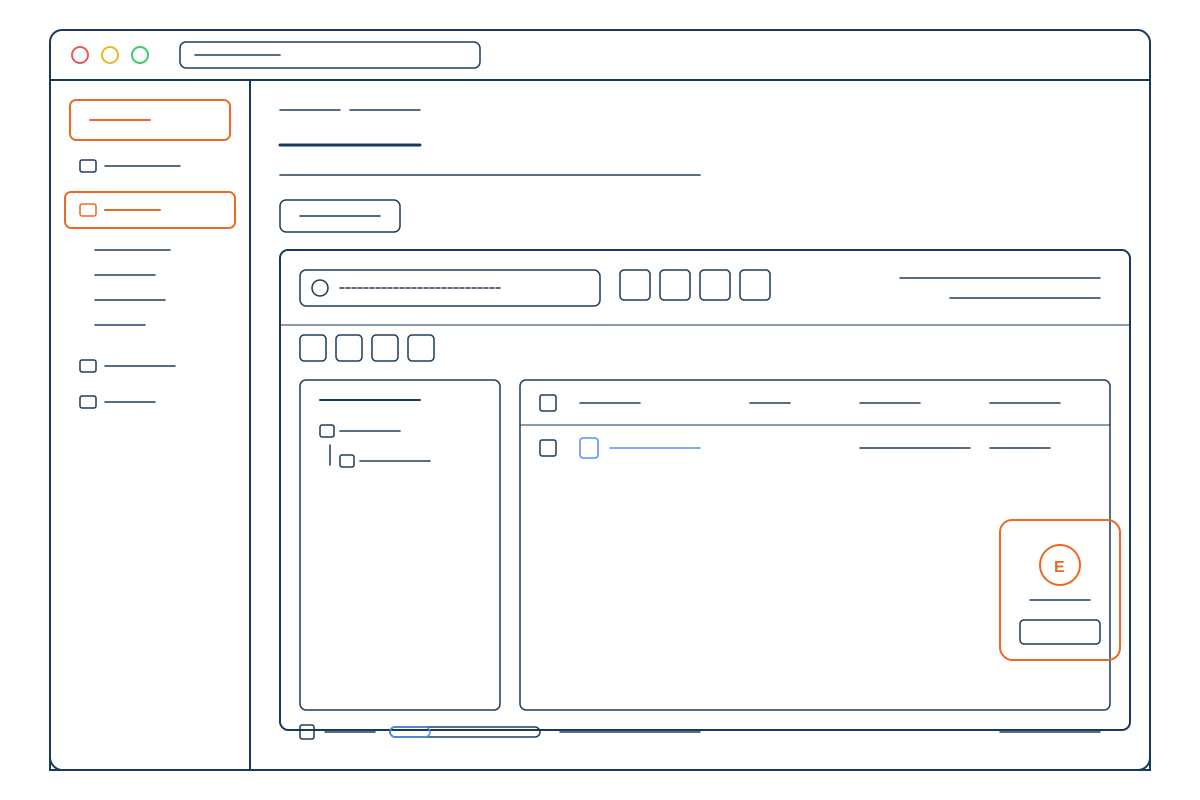
Every website on Hostney can now have its own bot protection rules. A rule picks out requests by address, country, path, user agent, header and more, and decides what happens to them: block them, give the visitor a check, or let them past parts of our protection. Custom rules are live now on the WAF page of the control panel, and every plan includes them.
Our bot protection works without any setup, and most sites never need to touch it. It scores every address that visits, checks the ones that act like software, and blocks the ones that keep misbehaving. What it can’t know is the things only you know about your site. The cloud server that calls every few minutes is the service that backs it up. Your shop only ships to two countries. The address your whole team shares is your office. Custom rules are where you write those down, one website at a time.
Below is what kept coming up before we built this, what a rule can do, some rules to start from, and how to set up your first one.
The cases that kept coming up#
We work with agencies that look after their clients’ WordPress sites, and custom rules have been one of their longest-standing requests. Agencies tend to run their client sites through a management service such as WP Umbrella or ManageWP, which backs up, updates and monitors every site from one dashboard. Those services work from cloud servers, and our bot protection asks visitors from hosting and cloud networks to pass a check first, because very few people browse the web from a rented server and a lot of bots do. A management service can’t pass a check meant for a person in a browser, so its calls were turned away.
Letting them in by address is harder than it sounds. WP Umbrella alone publishes five separate address lists, its uptime monitor works from addresses of its own, and a service’s addresses change over time. Miss one, and the monitor meets the check and reports client sites as down while they’re up.
We’d seen the same problem in other shapes:
- A WooCommerce shop’s integrations. Vendor and shipping services call the shop’s REST API from cloud servers, and those calls met the same check.
- Payment webhooks. A payment provider’s server can’t pass a check either. And while Lockdown is on (the switch that checks every visitor during an attack), a webhook meets a check on every call.
- A shop that only sells in a few countries, where a visitor from anywhere else is rarely a customer.
- An office. Bot protection checks a small share of ordinary visitors at random, so a team that works on its own site all day sees a check now and then.
What these have in common is that the right answer depends on the site. A service that’s welcome on one website is a stranger on the next, and a path that has to stay open on a shop doesn’t exist on a blog. Custom rules let you say exactly that: “let WP Umbrella in on this one site, and nobody else.”
If you’d like the background on the automatic side, we covered how it works in how we stop bot traffic at the origin, and what we changed this fall in before you upgrade your hosting plan, check how much of your traffic is bots.
What a rule is#
A rule has a name you choose, the conditions a request has to match, and what happens when it does. Each website has its own list of rules, and they run in order, top first.
Say you want password guessing kept away from your login page. The rule could read: when the Country is not in your own country and the URI path equals
/wp-login.php
, give the visitor a Managed challenge. You or a colleague signing in from a hotel abroad get a quick check and carry on. A password-guessing script abroad has to get through the check before it can try a single password. A rule like this works best next to the basics in how to secure your WordPress login.
What a rule can match#
- the visitor’s IP address: one address, a range, several of them, or one of our managed lists
- the AS number of the network the address belongs to
- the country or continent
- the hostname, the URI path, the file extension and the query string
- the request method, like GET or POST
- the user agent and the referer
- any header or cookie you name
And adds a condition to a group, and every condition in a group has to match. Or starts a new group, and the rule applies when any of its groups matches. Text is compared without regard to upper and lower case, so
BadBot
also catches
badbot
.
Three signals from our own bot protection#
Three conditions come from things only our bot protection knows about a visitor:
- Datacenter network is yes when the visitor comes from a hosting or cloud network, such as a cloud server or a VPS.
- Verified crawler is yes for a search engine crawler that comes from its operator’s own addresses. Googlebot from Google’s ranges counts, and something that only calls itself Googlebot doesn’t. We explain how we tell them apart in how we verify search engine bots.
- Threat level is our current score for the visitor’s address: Clean, Suspicious, Malicious or Blocked.
With these you can challenge cloud traffic at your checkout, or block only the visitors we already rate as malicious, and leave everyone else alone.
What a rule can do#
- Block. The request gets a 403 page that says the site’s security protection blocked it. Images and other files are blocked too.
- Challenge. The visitor gets our check. The Non-interactive challenge is the proof of work a browser solves by itself in about 2 seconds. The Interactive challenge is a checkbox. The Managed challenge gives most visitors the quick check and the checkbox to the ones we already suspect. Someone who passed the check recently isn’t asked again.
- Skip. The request goes on without the parts of our protection you tick: Hostney bot protection (no bot checks or blocks, the datacenter check and Check every visitor included), Lockdown, your rate-limiting rules, or the remaining custom rules below this one. With a plain Skip, scoring keeps running in the background.
A check is for a person in a browser. A script, an app or another server can’t pass one, so for an API endpoint or a webhook, use Block or Skip and never a challenge.
The order of your rules counts. A Skip rule doesn’t save a request from a Block rule further down unless it also skips the remaining custom rules, so put the rules that let things through at the top.
A Skip never lifts your own blocks, either. Blocked addresses and countries, access rules and AI crawler blocking keep applying. And because anyone can send any user agent, don’t build a Skip rule on one. A header only your integration knows, like an API key, is a different story.
Trusted addresses#
Some services you trust work your site hard on purpose: backups, migrations, monitoring, site management. For those, a Skip rule can mark the addresses as a Trusted address. On that website they get no bot protection of any kind, and their visits aren’t scored, so a backup that asks for thousands of files doesn’t build up a threat score doing it. Your own blocks still apply to them, and so do Lockdown and your rate-limiting rules unless you tick those as well.
So nobody trusts half the internet by mistake, a trusted address rule only takes addresses. Each one is a single IP, or a range no wider than a /24 (a /64 on IPv6), typed in or picked from one of our lists. A rule can’t trust a country, a network or a user agent, and a website can have up to 50 trusted addresses across its rules. A range or a list counts as one.
Try a rule before it acts#
Every rule is Active, Log only or Disabled. A rule in Log only counts the requests it matches and changes nothing, and every rule in the list shows how often it matched in the last 24 hours. So add a Block or challenge rule in Log only, look at its count the next day, and switch it to Active once the number looks like what you meant to catch.
The side panel also warns you when a rule would match nearly every visitor, for example a value of one or two characters, the path
/
on its own, or a range that covers every address.
WP Umbrella and ManageWP, without typing an address#
Services that connect from many addresses are the hardest to let in by hand, and their addresses change. For two of them we keep the list for you: WP Umbrella and ManageWP. We refresh each list every day from the addresses the service publishes, so when it adds or retires a server, your rule keeps up. Our WP Umbrella list covers all five of its published lists, the uptime monitor included.
You don’t even have to build the rule. When the WP Umbrella plugin or ManageWP’s Worker plugin is active on a website and no rule uses its list yet, the Bot protection custom rules section tells you and offers to set it up. You get a Skip rule called “Allow WP Umbrella” (or “Allow ManageWP”) at the top of the list that trusts the addresses on our list. You check it and save.
If you look after client sites with one of these tools, as part of a WordPress maintenance plan for example, that’s the first rule to add on every site where the plugin runs.
Some rules to start from#
| You want to | When the request matches | Then |
|---|---|---|
| Let WP Umbrella manage the site | IP address is in list WP Umbrella | Skip, as a Trusted address (the panel offers to set this one up) |
| Never show your office a check | IP address is in your office’s range, such as
203.0.113.0/24
| Skip, as a Trusted address |
| Keep a payment webhook working, even during Lockdown | URI path starts with the webhook’s path, such as
/webhooks/
| Skip Hostney bot protection and Lockdown |
| Let your shop’s integrations reach the WooCommerce REST API | URI path starts with
/wp-json/wc/v3/
| Skip Hostney bot protection |
| Check sign-ins from abroad | Country is not in your own country And URI path equals
/wp-login.php
| Managed challenge |
| Check visitors from countries you don’t sell to | Country is not in the countries you sell to And Verified crawler equals No | Managed challenge |
| Block login attempts from addresses we already rate as malicious | Threat level equals Malicious And URI path equals
/wp-login.php
| Block |
| Stop a bot by its name | User agent contains
BadBot
| Block |
A few notes on those:
- The office. Your office’s public address is the one any “what is my IP” page shows from inside it. If the office has IPv6, add its /64 as well, because devices change their IPv6 address within it.
- The webhook. Match the exact address the provider calls. Your payment plugin’s settings page usually shows it.
- The REST API. Stop at
/v3/. The whole of/wp-json/wc/would also cover the shop’s public cart and checkout endpoints, which card-testing bots like to use. The integration still signs in with its WooCommerce API key, so WooCommerce’s own check stays in place. If the integration calls from a few fixed addresses, a Trusted address rule on those is tighter still. Our WooCommerce security guide covers the rest of a shop’s protection. - Countries. Without the Verified crawler condition, a rule like this also challenges search engines that crawl from those countries, and a Block rule on a country across the whole site blocks them.
Setting up your first rule#
- In the control panel, open Security > Firewall > WAF and pick the website.
- Under Bot protection custom rules, click Add rule, or Set up the rule if the section shows a WP Umbrella or ManageWP notice.
- Give the rule a name you’ll still understand in six months, like “Office” or “Payment webhook”.
- Under When the request matches, pick a field, an operator and a value, with And and Or for more conditions.
- Under Then, pick the action. For a Skip, tick what it skips.
- Choose a Position: First, Last, or after one of your rules.
- For a Block or challenge rule, set the Status to Log only.
- Read the preview at the top of the side panel, which says in one sentence what the rule will do, and save.
A day later, look at the rule’s match count in the list. If it caught what you meant, open Manage and choose Switch to Active. You can move a rule later with the arrows in the list, and every change shows up in the WAF page’s Change history and in your activity log.
Or ask Ellie#
If you’d rather describe a rule than build it, ask Ellie, the AI assistant in the control panel. She can read a website’s rules and tell you what each one does, and she can propose a new rule or a change to one you already have. Each change comes as a card you confirm, and nothing changes until you do. “Let WP Umbrella through on my shop” or “check everyone outside the US on the login page” is enough to start with. There’s more about her on the Ellie page.
If you set up exclusions before#
If you had set up bot protection exclusions, we moved them into custom rules for you, so there’s nothing to redo. Look for the rules called Excluded paths and Trusted addresses on your websites.
To trust an address you spot on the Bot detection page, open the menu on its row in the threats list and choose Trust this address. The WAF page opens with the address waiting in the custom rules section: pick the website, and the rule is filled in for you to check and save.
How many rules you get#
Custom rules are included on every plan, the free trial too. A website can have up to 5 rules on Startup and during the free trial, 10 on Advanced and 20 on Pro, and the section shows how many each website uses. The pricing page has the rest of what each plan includes.
A few more things to know:
- Rules don’t depend on the Bot protection switch. They’re yours, so they keep working if you turn a site’s bot protection off.
- Certificates keep renewing. Certificate renewals and our own uptime monitoring never meet your rules, so even a rule that blocks every path can’t stop a site’s certificate from renewing.
- Secrets stay hidden. A header, cookie or query string value can be a secret, like an API key. We never keep those values in your activity log, Ellie never sees them, and a delegate with view-only access sees “(hidden value)” instead.
Start with one site#
The quickest first rule is the one the panel offers you. If WP Umbrella or ManageWP runs on one of your sites, the notice is already waiting on its WAF page. If not, an office rule or a webhook rule in Log only is a good place to begin. The short version of all this is on our bot protection page, and if you’re not on Hostney yet, custom rules are part of the free trial along with the rest of the platform.