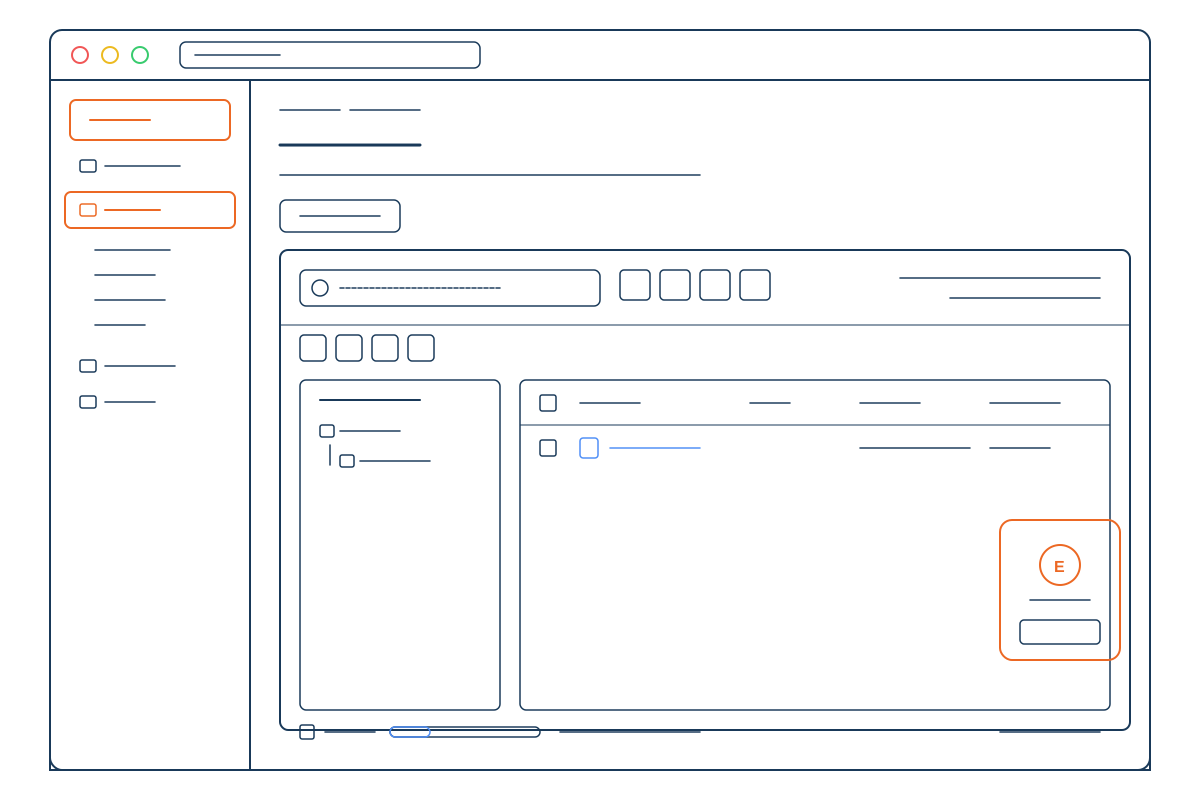
Short answer: a block theme is a WordPress theme built entirely out of blocks – the same building blocks you use to write posts. Every part of the site, including the header, footer, and the templates that wrap individual pages, is editable in the Site Editor at Appearance > Editor. Block themes use a single configuration file called
theme.json
to define colors, fonts, spacing, and layout – the things older themes hard-coded into PHP files and a
style.css
. WordPress calls the whole system Full Site Editing (FSE), and the default WordPress themes since Twenty Twenty-Two (December 2021) have all been block themes. You should choose a block theme if you want to edit your site visually without touching PHP; you should stick with a classic theme if you depend on a specific page builder, on long-tail plugins that have not added block support, or on the level of theme customization that only PHP gives you.
For most sites starting in 2026, a block theme is the right call. WordPress is investing all of its core development effort into the block editor and FSE, and classic theme features are getting fewer new capabilities each release. But block themes are a real architectural shift – they are not just classic themes with a new editor bolted on – so it is worth understanding what changes before you commit.
This article covers what block themes actually are, the pieces that make them work (
theme.json
, template parts, the Site Editor, global styles), how they differ from classic themes in practice, when each is the right choice, the five block themes worth knowing in 2026, and a migration path if you are moving from a classic theme to a block one.
The short history: how WordPress got here#
WordPress started in 2003 with PHP templates – the
header.php
,
index.php
,
footer.php
model that every developer learns. For 15 years, customizing a theme meant editing those files. The Customizer added in 2012 gave non-developers a few sliders, but real changes still happened in PHP.
In 2018, WordPress 5.0 shipped the block editor (Gutenberg) for posts and pages. For three years, it lived alongside the classic editor and only touched the content area – the header, footer, sidebars, and templates remained PHP.
In December 2021, WordPress 5.9 shipped Full Site Editing. The first default block theme – Twenty Twenty-Two – landed at the same time. FSE meant every part of the site became blocks. The PHP template files were replaced with HTML files made of block markup. The Customizer was replaced by the Site Editor. The
style.css
color and font definitions were replaced by
theme.json
.
Every default WordPress theme since (Twenty Twenty-Three, Twenty Twenty-Four, Twenty Twenty-Five) has been a block theme. The classic theme model is not deprecated and probably never will be – too much of the ecosystem still depends on it – but new core development happens in the block direction.
The pieces that make a block theme#
Four things make a theme a “block theme” rather than a classic one. If a theme has all four, it is FSE-compatible.
1. theme.json - the configuration file#
theme.json
is a single JSON file at the root of the theme that defines:
- The color palette (named colors used in the editor’s color pickers)
- The typography (font families, sizes, line heights, weights)
- The spacing scale (padding, margin, gap values)
- The layout (content width, wide width, full-width settings)
- Per-element styles (defaults for
h1throughh6,a,button) - Per-block styles (defaults and variants for
core/paragraph,core/quote, etc.) - Which features the block editor exposes for each block
A small but real
theme.json
looks like this:
{
  "$schema": "https://schemas.wp.org/trunk/theme.json",
  "version": 2,
  "settings": {
    "color": {
      "palette": [
        { "slug": "navy", "color": "#002447", "name": "Navy" },
        { "slug": "orange", "color": "#ea580c", "name": "Orange" }
      ]
    },
    "typography": {
      "fontFamilies": [
        { "slug": "sans", "fontFamily": "IBM Plex Sans, system-ui, sans-serif", "name": "Sans" }
      ],
      "fontSizes": [
        { "slug": "small", "size": "0.875rem", "name": "Small" },
        { "slug": "medium", "size": "1rem", "name": "Medium" },
        { "slug": "large", "size": "1.5rem", "name": "Large" }
      ]
    },
    "layout": {
      "contentSize": "720px",
      "wideSize": "1200px"
    }
  },
  "styles": {
    "elements": {
      "h1": { "typography": { "fontSize": "var(--wp--preset--font-size--large)" } },
      "link": { "color": { "text": "var(--wp--preset--color--orange)" } }
    }
  }
}What used to require a bespoke
style.css
plus a
functions.php
block of
add_theme_support()
calls is now this one declarative file. The block editor reads it directly, so the editor canvas and the live site stay in sync automatically – this is the same mechanism covered in how to add custom styles to the WordPress visual editor for theme developers.
2. Templates and template parts (HTML files)#
In a classic theme,
header.php
and
footer.php
are PHP files full of WordPress functions and HTML. In a block theme, they are pure HTML files that contain block markup. The file
parts/header.html
might look like:
<!-- wp:group {"layout":{"type":"constrained"}} -->
<div class="wp-block-group">
  <!-- wp:site-title /-->
  <!-- wp:navigation /-->
</div>
<!-- /wp:group -->No PHP. No
<?php the_title(); ?>
. The block comments (
<!-- wp:... -->
) are how WordPress identifies what to render. Templates and template parts live in two folders inside the theme:
-
templates/– the full-page templates (index.html,single.html,page.html,archive.html,404.html, etc.) -
parts/– the reusable pieces (header.html,footer.html, custom parts you create)
Because they are just block markup, the Site Editor can read them, let you edit them visually, and save the result back to the file (or to the database as an override). This is what makes the editing experience feel unified – the file format the editor produces is the same format the theme ships with.
3. The Site Editor (Appearance > Editor)#
In a classic theme, Appearance has menu items for Customize, Widgets, Menus, Header, and Background – each its own page with its own controls. In a block theme, all of those are replaced by a single Editor entry that opens the full Site Editor.
The Site Editor lets you:
- Edit any template (single posts, pages, archives, 404)
- Edit any template part (header, footer, sidebar)
- Edit global styles (the same things
theme.jsondefines, but live with a preview) - Manage navigation menus
- Manage reusable patterns (saved block layouts you can drop anywhere)
For most non-developer site owners, this is the single biggest change. The Site Editor is one tool instead of five disconnected screens. Once you learn its layout, editing the footer is the same workflow as editing the header, the homepage, or the 404 page – all of them are templates or parts inside the same Site Editor.
4. Global styles#
Global styles are the live, in-browser version of
theme.json
. The Site Editor has a “Styles” panel that exposes everything in
theme.json
as visual controls. A user can switch the body font, change the link color, or pick a different style variation without ever opening a code editor.
Style variations are sets of pre-built global-styles presets that ship with a theme. Twenty Twenty-Four, for example, includes around a dozen variations – the same templates and parts, but with different palettes and typography. The user clicks one in the Styles panel and the whole site flips to that look. Building a theme to support several variations is one of the genuine advantages block themes have over classic themes.
Block themes vs classic themes in practice#
Here is the picture, point by point.
| Capability | Classic theme | Block theme |
|---|---|---|
| Edit header/footer visually | No (needs PHP edits or a builder plugin) | Yes (Site Editor) |
| Edit individual page templates visually | No | Yes |
| Global typography/colors without code | Limited (Customizer if the theme supports it) | Yes (Global Styles) |
| Reusable patterns | Via plugins or saved blocks | Built in |
| Style variations (pre-built looks) | No | Yes |
Customizer (
Appearance > Customize
) | Yes | No (the Customizer is removed – settings live in Global Styles) |
widgets.php
widget areas | Yes | No (replaced by block-based widgets) |
| Compatibility with page builders (Elementor, Divi, Beaver) | Excellent | Mixed – they work but the value proposition shrinks because the theme already does most of what they offered |
| Plugin compatibility (older plugins) | Higher | Some plugins that hook into
wp_head
/ template tags work without changes; some that depend on the Customizer or widget areas need updating |
| Theme file format | PHP templates +
style.css
+
functions.php
| HTML templates +
theme.json
+
style.css
+
functions.php
|
| Editor canvas matches live site | Only with explicit
editor-style.css
| Automatic from
theme.json
|
| Speed | Highly variable | Generally lighter (fewer plugin scripts needed for the same functionality) |
The single most disorienting change for an experienced WordPress user moving to a block theme is that the Customizer disappears. The settings that used to live there – site title, tagline, header image, header text colors, footer text – are now scattered across the Site Editor’s templates, parts, and Global Styles. This is by design (one tool instead of five), but it takes a session or two to find where each setting now lives.
The biggest gain is that things that used to require PHP edits are now point-and-click. Changing the footer copyright text from “Powered by WordPress” to your company name, in a block theme, takes ten seconds. In a classic theme, it takes a child theme, a
footer.php
copy, and a deploy.
When to choose a block theme#
Block themes are the right choice when any of the following is true:
- You want to manage the site yourself without a developer. This is the audience FSE is built for. The Site Editor and Global Styles cover most non-trivial visual work without code.
- You are building a new content site, blog, or small-business marketing site. The default Twenty Twenty-Four and Twenty Twenty-Five themes are excellent starting points and require no purchase.
- You want style variations. Themes like Ollie ship 10+ pre-built looks. For agencies showing clients design options, this is faster than building three mockups.
- You want fewer plugins. Block themes do natively what Elementor, Beaver Builder, and SiteOrigin Page Builder did – which means a faster site, fewer plugin update risks, and a smaller attack surface.
- You are starting from scratch. Building a block theme is usually less work than building a classic one because
theme.jsonreplaces hundreds of lines offunctions.phpandstyle.css. See how to create a custom WordPress theme from scratch for a from-zero walkthrough that uses the block-theme conventions.
When to stick with a classic theme#
Classic themes are still the right choice when any of these apply:
- You have a heavily customized site already running on a classic theme. Migrating to a block theme means rebuilding the templates. The reward has to outweigh the rebuild cost.
- You depend on a specific page builder. Elementor, Divi, and Beaver Builder all work inside a classic-themed wrapper. They also work inside a block theme, but you lose most of the value of the block theme because the builder takes over.
- You depend on plugins that need classic-theme hooks. This list shrinks every year, but it is not empty. Some membership, LMS, and e-commerce add-ons still assume a classic template hierarchy.
- You write PHP-heavy custom themes for clients. The classic theme model gives you total control. Block themes are more declarative; if you want to inject server-side logic into every part of a template, classic themes are still easier.
- You need maximum stability and predictability. Block themes have been default since 2021, but the FSE feature set is still evolving – new blocks, new global-styles features, and occasional behavior changes ship with every WordPress release. Classic themes have not changed materially in years.
In particular, a heavily customized site running on a classic theme that “just works” is not a strong candidate for migration. If you do not need block-theme features, the upgrade is mostly disruption with little payoff.
Five block themes worth knowing in 2026#
The block-theme ecosystem has matured fast. These five cover most use cases.
1. Twenty Twenty-Five (default, free)#
The current default WordPress theme. Built specifically to be a flexible starting point – includes around a dozen style variations covering different colors and typography. Excellent for blogs, personal sites, small businesses, and as a base to extend with custom patterns. Free, in the WordPress.org repository, installed automatically with WordPress core.
2. Twenty Twenty-Four (default, free)#
The previous default. Three “use cases” baked in (entrepreneur, photography, writer) plus several style variations. Slightly more opinionated than Twenty Twenty-Five but still very flexible. Many sites that adopted it in 2024 are sticking with it because the design holds up.
3. Kadence (free + pro)#
A full theme ecosystem with a strong block library (Kadence Blocks) and 100+ starter templates. Has a classic-theme heritage but the current version is a full block theme. Strong for business sites that want a polished starting point without designing from scratch. Free version is genuinely useful; Pro adds advanced patterns, header builder enhancements, and templates.
4. Blocksy (free + pro)#
Performance-focused block theme with a strong header/footer builder and a good library of demo sites. Loads light by default, which makes it popular with developers who want a fast base. Both classic and block (FSE) variants exist – make sure you are picking the FSE one if that is what you want.
5. Ollie (free)#
Ships 10+ pre-built site templates – landing pages, multi-page small-business sites, portfolio sites. Built by FSE specialists to showcase what global styles and patterns can do. Excellent for designers and agencies who want pre-built variations to show clients. Free and open-source.
The older Blockbase theme (a Jetpack-flavored FSE starter) is still in the WordPress.org repo but has been mostly superseded by Twenty Twenty-Four and Twenty Twenty-Five for general use.
Migrating from a classic theme to a block theme#
This is the part most articles skip. There is no one-click migration tool – and there cannot be, because the underlying file formats are different. The realistic path is:
- Pick the block theme you want to land on. Test it on a staging copy first. Most managed hosts include a staging environment; if yours does not, a local copy via Local by Flywheel or LocalWP works fine.
- Map the classic theme’s features to the new theme’s equivalents. Write down everything the classic theme did – widget areas, custom header, custom footer, sidebar variations, child-theme tweaks. Find the equivalent in the new theme (a template part, a global-style setting, a pattern).
- Activate the new theme on staging. Things will break – widget areas disappear, menus may not assign correctly, and the homepage may render the wrong template. This is expected.
- Rebuild the header in the Site Editor. Use
parts/header.htmlas the canvas. Drop in the site title, logo, and navigation. Save. - Rebuild the footer the same way. The footer guide covers the block-theme path step by step – it is the easiest part of the migration.
- Set global styles. Open Styles and set colors, fonts, and link colors to match the old theme. This replaces what used to live in
style.cssand Customizer settings. - Rebuild any custom templates. If the classic theme had a custom
single-product.phporarchive-news.php, recreate it astemplates/single-product.html(or by using template variations in the Site Editor). - Move widgets to template parts. Block-based widgets work, but the cleaner approach is to put the equivalent blocks directly into your sidebar template part. A “Recent posts” widget becomes a Latest Posts block in
parts/sidebar.html. - Move Additional CSS. Customizer’s Additional CSS panel is gone in block themes. Move the CSS into the new theme’s
style.css, or use the Styles > Custom CSS panel inside the Site Editor (added in WordPress 6.2). See how to edit and add custom CSS in WordPress for the block-theme-specific routes. - Switch the live site once staging is solid. Push the changes to production through your host’s staging-to-prod workflow, or deploy the theme files and switch active themes manually.
The migration takes anywhere from an afternoon (small content site, basic classic theme) to several days (large business site with heavy customization). If you are not sure whether your site is worth migrating at all, the question to ask is: “Will I edit this site visually in the next year?” If yes, the migration pays back. If the site is in maintenance mode, leave it on the classic theme.
You can also start fresh: if the existing site is small enough, sometimes the right answer is to spin up a new block-themed site, manually move the content over (a few imports, a few copy-pastes), and retire the old install. This is faster than a structural migration on sites with under 50 pages and is often what we see agencies do for client refreshes.
Common mistakes when working with block themes#
A few traps catch people coming from the classic-theme world.
- Looking for the Customizer. It is gone. Site title, tagline, color, and typography settings now live in Appearance > Editor > Styles. The “Appearance > Customize” menu item is hidden in block themes by default. (A few plugins re-add it for backward compatibility, but new settings should not go there.)
- Editing
header.phporfooter.php. Those files do not exist in block themes. The equivalents areparts/header.htmlandparts/footer.html. Edit them in the Site Editor or by direct file edit. - Adding widgets through
Appearance > Widgets. Block themes do not have classic widget areas. Widgets are now blocks inside template parts. The Widgets screen will look mostly empty. - Expecting page builders to give you more. Elementor, Divi, and similar still work, but the value proposition narrows. The block theme already gives you visual editing of headers, footers, and templates – which is the main thing page builders added to classic themes. Pay for the builder only if you genuinely need its specific feature set.
- Overriding
theme.jsonsettings with custom CSS.theme.jsongenerates CSS custom properties (--wp--preset--color--navyetc.) and applies them through:root. If you override the same selector instyle.cssyou can fight the theme. The right approach is usually to changetheme.json(or Global Styles), not to bolt on extra CSS. - Editing the parent theme directly. Same rule as classic themes – if you customize, do it in a child theme or via Global Styles. Theme updates will wipe parent-theme edits.
- Assuming
theme.jsonversions are interchangeable.theme.jsonhas aversionfield (currently 2 or 3). Some features only exist in v3. Match the version to the WordPress version your audience is running.
How Hostney handles block themes#
Block themes work on Hostney exactly as upstream WordPress documents them. There is nothing Hostney-specific about FSE – we ship vanilla WordPress, the Twenty Twenty-Five default theme is installed on every fresh WordPress install we provision, and the Site Editor is reachable at Appearance > Editor from the moment your install is live.
A few things in our platform that matter when you are working with block themes:
- The file manager. If you want to edit
theme.jsonor a template HTML file directly without SSH, our Monaco-editor file manager opens any file inwp-content/themes/for live editing. The same workflow we describe in how to change, install, and customize a WordPress theme – that article covers the install/activate path; this one covers what block themes are once you have one running. - Staging environments. Migrating from a classic theme to a block theme is not something you do on the live site. Every Hostney WordPress install ships with one-click staging – clone the live site, do the migration on the staging copy, push back to production when it is solid. The whole migration loop fits in one afternoon for most sites.
- PHP version control. Block themes generally do not need a newer PHP than classic themes, but if you are also upgrading the theme stack while you are in there, our PHP manager lets you flip versions without touching the server. Block themes work on PHP 7.4 and up; PHP 8.2 or 8.3 is the right modern target.
- No theme.json validation surprises. Some hosts cache
theme.jsonaggressively and you have to clear caches to see changes. We do not – changes are visible in the editor immediately. Front-end full-page cache is invalidated automatically when the active theme’stheme.jsonchanges.
For agencies running multiple client sites, the combination of block themes + Hostney’s staging means a workflow where the developer rebuilds the design on a staging URL while the client keeps working on the live site, and the migration is one button when ready.
Summary#
Block themes are how WordPress sites work in 2026. The default themes are block themes, new core development targets them, and the ecosystem (Kadence, Blocksy, Ollie) is mature. For new sites, a block theme is the default-right answer.
The shift away from PHP templates and the Customizer is real, and people who have been managing classic-themed WordPress sites for a decade will spend a session or two relearning where each setting lives. The payoff is that everything else – editing the header, footer, individual templates, colors, fonts – becomes visual, lives in one tool (the Site Editor), and stops needing a developer for routine changes.
Classic themes are not going anywhere. If you have a stable site running on one and you are not bottlenecked on editing it, there is no urgency to migrate. But if you are starting fresh, picking up a new project, or your current theme is starting to feel limiting, this is the right time to be on a block theme.
Pick Twenty Twenty-Five or Kadence as a starting point, spend an hour in the Site Editor, and you will see why the rest of the WordPress world has moved.